A plain-language tour of what each part of the app does — tap "Open in app" under any
section to jump straight there. For every button, field, and honest caveat in full detail, ask whoever
manages this server for the full User Guide.
🛒 Shopping List
📦 Pantry
🔁 Restock List
🍳 Recipes
⚙️ Admin
🧾 Scan Receipt
📊 Reports
🏷️ Flyer Deals
📝 Notes
📇 Scan Inventory
🛒 Shopping List
Fast add & check off at the store.
Open Shopping List →
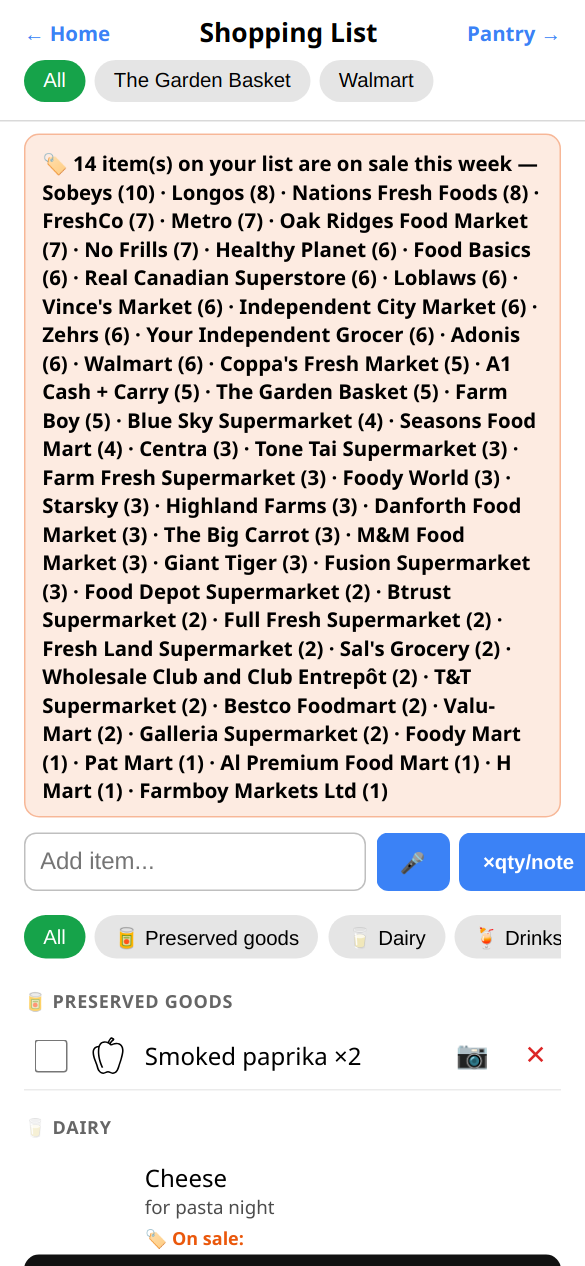
- Type an item to add it, or tap the 🎤 microphone and just say it out loud.
- Tap a store chip at the top and your usual items there — and anything already known to be sold there — get bubbled to the top for you.
- Orange 🏷️ badges mean something on your list is on sale right now.
- Tap 📷 next to an item to scan its barcode instead of tapping the checkbox — checks it off and teaches the app that barcode if it's the first time.
- When you're done shopping, tap "Done Shopping — Add to Pantry" — you'll get a quick one-item-at-a-time review (adjust quantity, category, location, expiry) before each one lands in Pantry, instead of everything moving in silently.
📦 Pantry
See what's stocked, adjust levels.
Open Pantry →
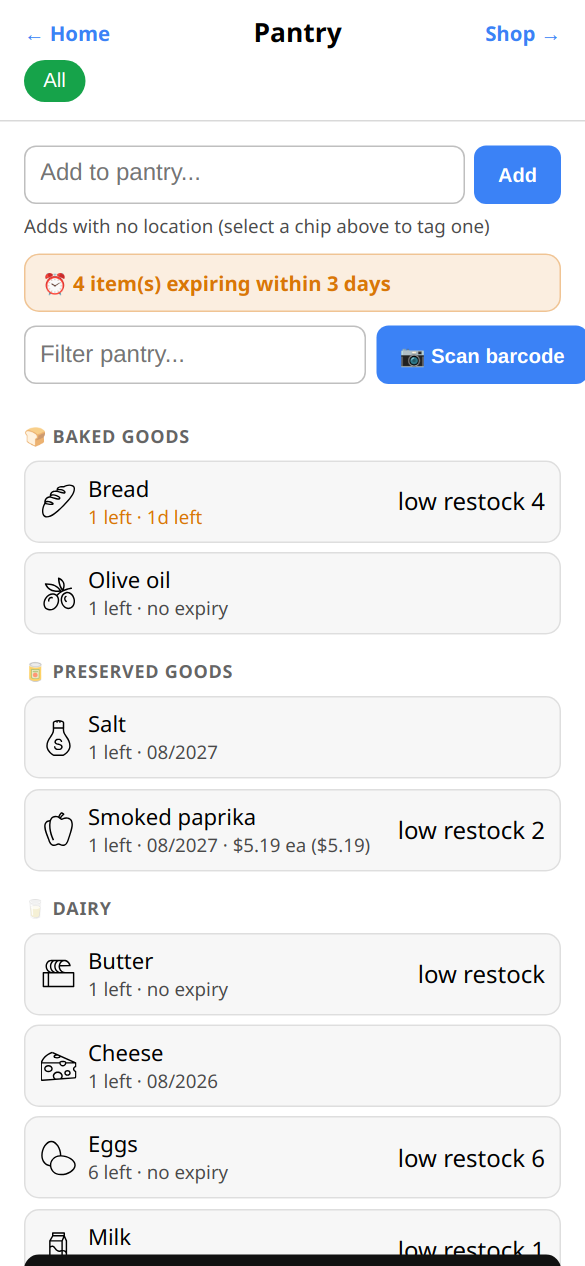
- Everything you currently have, grouped by where it's stored — a small 🏷 next to an item's name means it already has a barcode linked.
- Tap 📷 Scan barcode to add something new — point your camera at the barcode, then confirm the quantity, category, location, and expiry before it's saved.
- Setting an expiry date is optional and defaults to blank — most packages print a full day, so that's the default field, with a checkbox for the ones that only print a month/year. There's also a 📷 button right there to photograph the package's own printed date instead of typing it. Once saved, the full date (or just the month/year, for that checkbox case) shows right in the list.
- An amber banner appears up top when something's expiring soon, so you don't have to go looking for it.
- Tap any item to expand it — adjust how much you have, set an expiry date, or remove it (it'll ask why: finished it, expired, wasted, or added by mistake). Changing its Category or Location asks you to confirm first.
- A "Details" section lets you add your own field/value pairs for anything a fixed field doesn't cover — removing one asks you to confirm first too.
🔁 Restock List
Items below their minimum, ready to add to Shop.
Open Restock List →
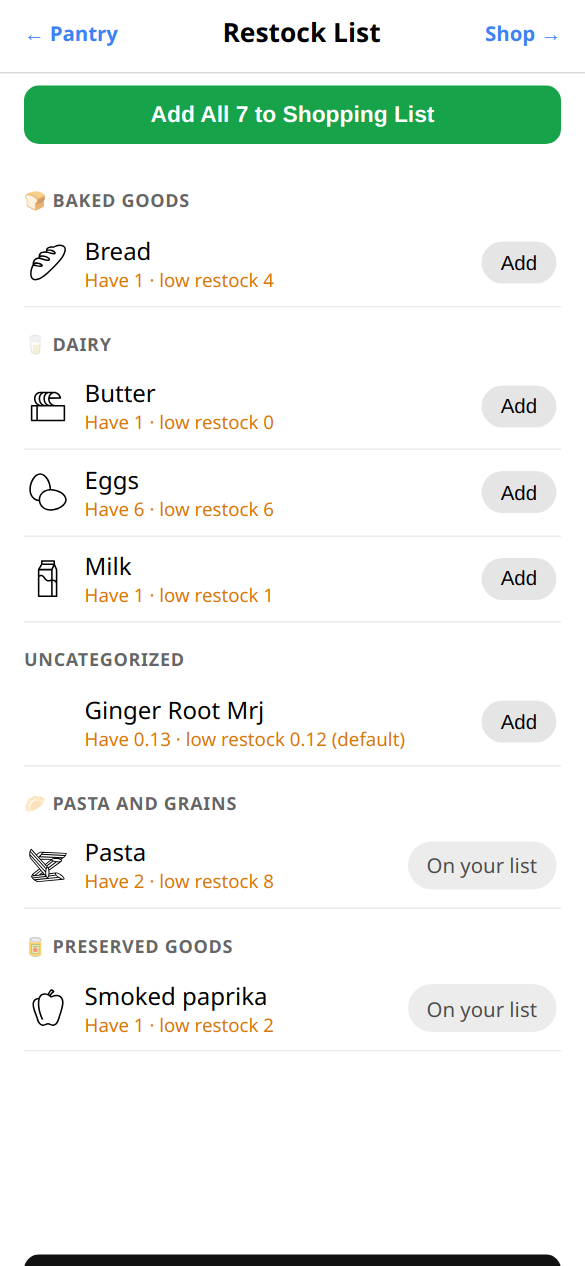
- Everything currently running low, all in one place — the total is your real amount on hand across every batch, not just one container of it.
- Tap "Add All" at the top to put everything on your Shopping List in one tap, each at the right amount. An item you've already added shows "On your list" instead of Add, so you always know where you left off.
🍳 Recipes
Find a recipe online, get suggestions, or pull from Mealie.
Open Recipes →
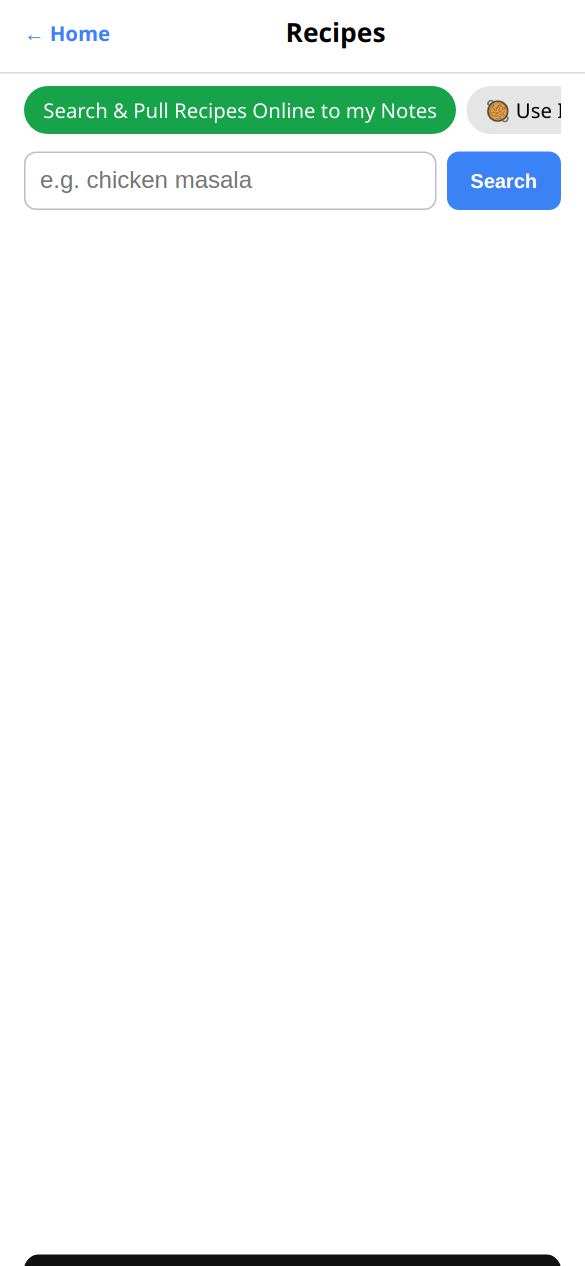
- Type any dish to search the web — only recipes rated 3+ stars are shown.
- "🥘 Use It Up" builds a search automatically from what's expiring soon in your Pantry — no typing needed.
- Save a recipe as a note to read while you cook, or straight into Mealie if you use it.
- If you run Mealie, "My Recipes" shows which ingredients you already have and adds the rest to your Shopping List.
⚙️ Admin
Stores, store catalogs, item categories.
Open Admin →
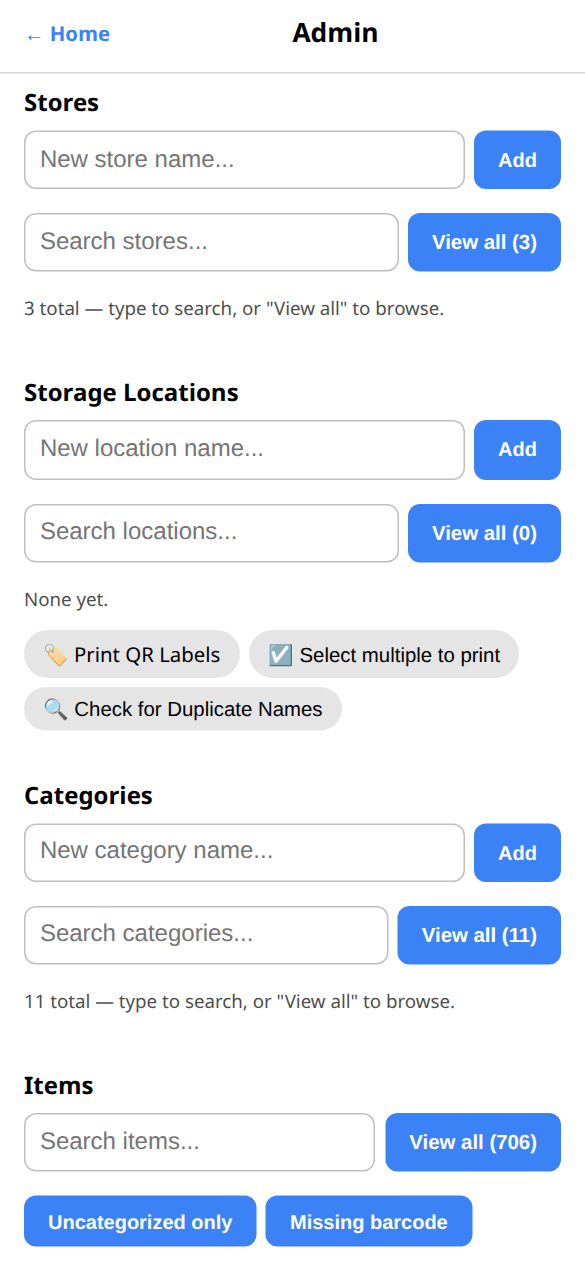
- Add the stores you actually shop at, and mark your favorites with a ★.
- Fix an item's category, name, or barcode by hand if it's ever wrong — or tap the 📷 next to the barcode field to scan it instead of typing it.
- Your favorited ★ items sort to the top of the Items list automatically, so the ones you touch most aren't buried in an alphabetical scroll.
- Tap a store's chip to open its own catalog right there — what that chain carries, each row with its own ★ for a favorite at that specific store, separate from an item's global favorite, for things you only ever pick up at one place.
- Toggles for "Uncategorized only" and "Missing barcode" help you find and clean up items that need attention.
- Deleting a Category or Storage Location that's still in use asks you to confirm first, and tells you how many items would lose that field — nothing is silently orphaned.
- Stores, Storage Locations, Categories, and Items are all a searchable chip/browse list — type to search, or tap "View all" to browse everything. Tap a Store or Category chip to rename/delete it (or set a category's icon) and see a browsable list of its items right there, with a one-tap ✕ to un-categorize one without leaving Admin.
- Tag a storage location's Label size (Small/Large) so 🏷️ Print QR Labels auto-picks the matching Avery sheet when you print just that one — and use its search box there to reprint a single location instead of the whole catalog.
- 🔍 Check for Duplicate Names finds storage locations that only differ by case or spacing and merges them into one with a single tap.
🧾 Scan Receipt
Photo → pantry, automatically.
Open Scan Receipt →
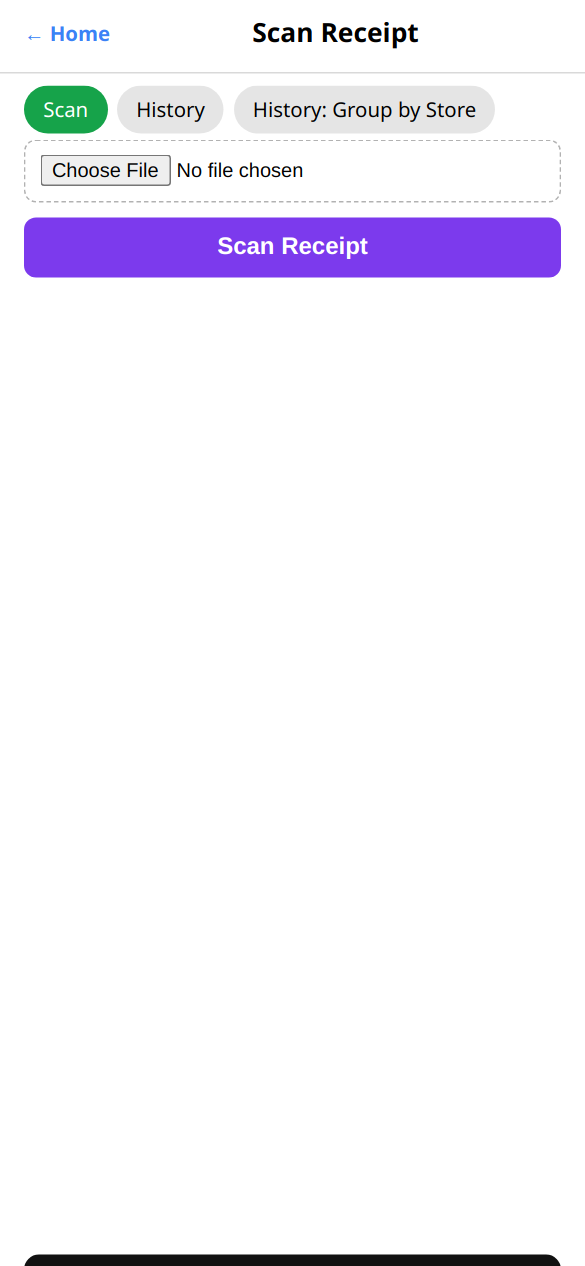
- Take or upload a photo of a real receipt.
- The app reads the merchant, items, prices, and purchase date, and suggests a match for each line — you review and confirm before anything's saved.
- Items you commit are dated to the receipt's own purchase date when it found one printed on the receipt, not the day you scanned it — shown on the review screen before you confirm. Falls back to the scan date only when no date could be read off the receipt.
- Every past scan is kept in History, rolled up into a collapsible Year → Month list (grouped by the receipt's own purchase date, not the scan date) so a long history doesn't turn into one giant scroll — the most recent month is open automatically. "History: Group by Store" shows the same history bundled by merchant, with the same Year → Month rollup nested inside each store's list.
- Tap any receipt row (in either History view) to expand it — see every line item on that receipt (name, quantity, price), not just the total and item count.
- Check any receipt (or tap "Select all shown") and hit Delete selected to clean up old scan records — only the scan itself goes, anything already committed to Pantry stays put.
📊 Reports
Spend, consumed & wasted over time.
Open Reports →
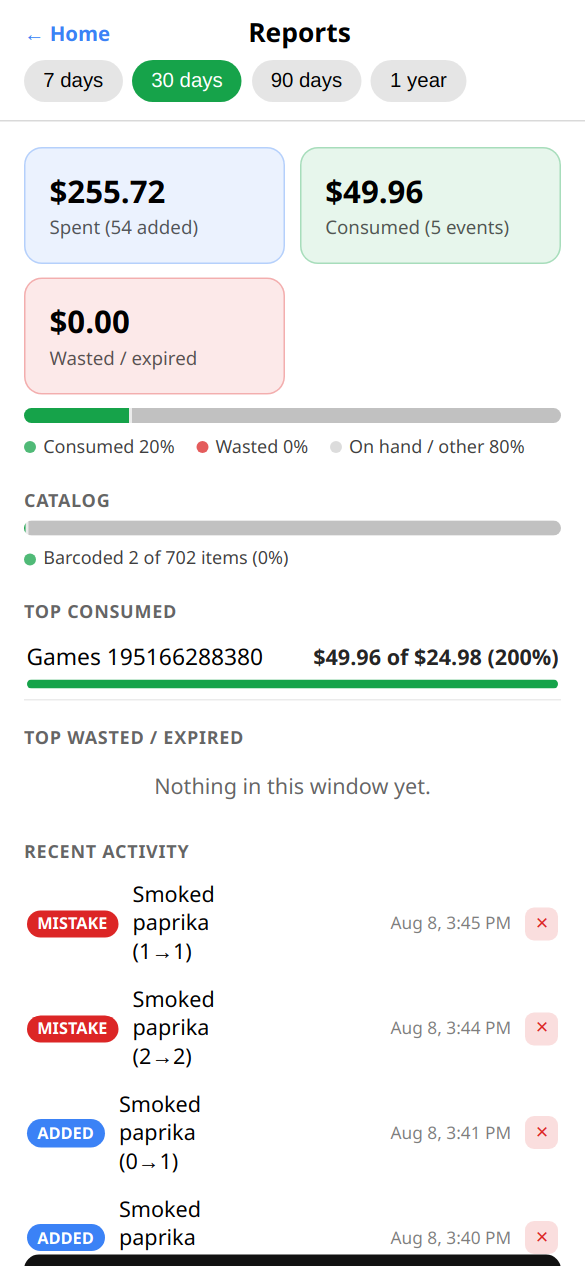
- Pick a time window and see what you spent, used, and threw out — with visual bars, not just numbers.
- A "Barcode Coverage" bar shows how much of your catalog has a barcode linked so far.
- "Save as Note" turns any of these views — your shopping list, restock needs, what's expiring, missing barcodes, your whole pantry, a spend summary, or receipts grouped by store — into a note you can read offline.
🏷️ Flyer Deals
Browse this week's flyer deals.
Open Flyer Deals →
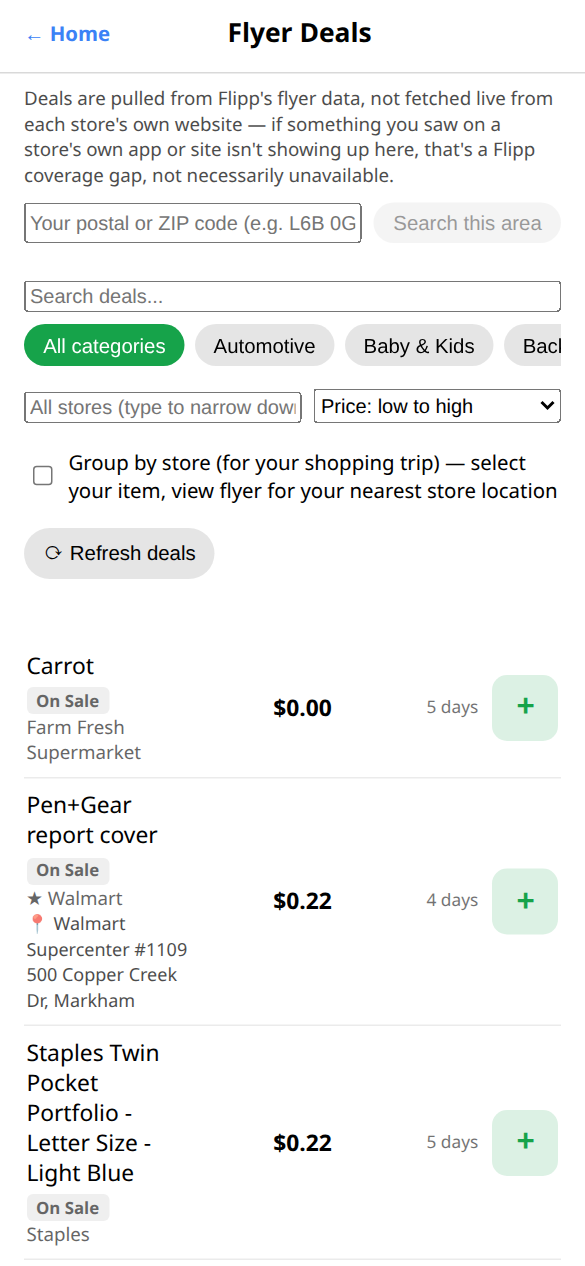
- Current promotions for stores near your postal or ZIP code.
- Search, filter by store or category, and sort by price or how soon a deal ends.
- Tap the green + to add a deal straight to your Shopping List.
📝 Notes
Free-form notes & checklists.
Open Notes →
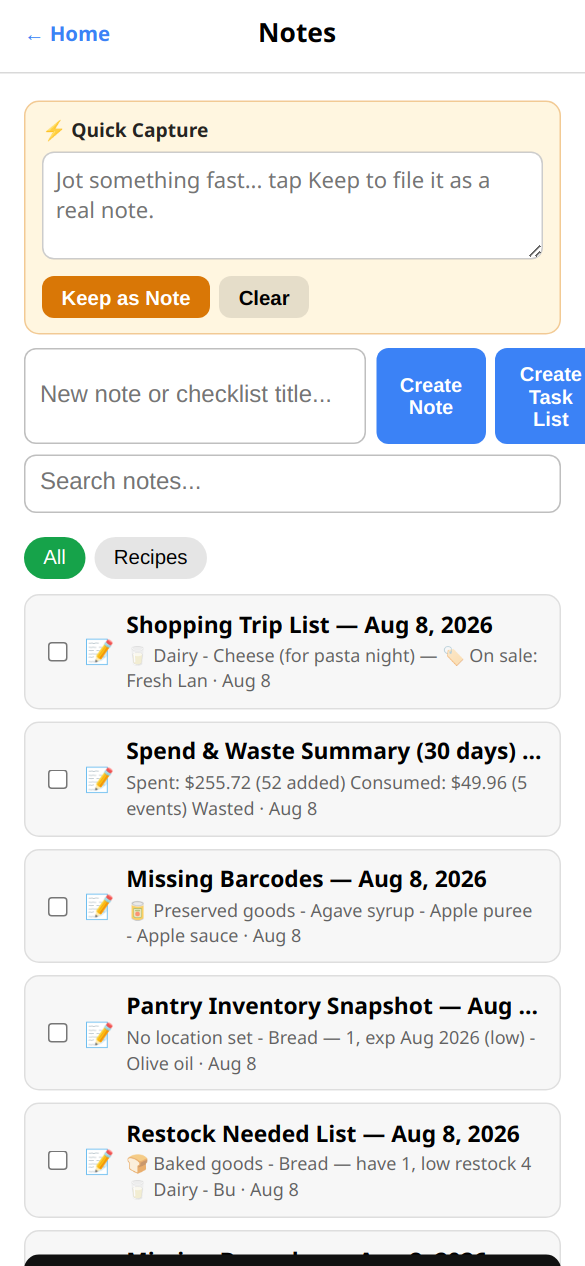
- Quick Capture at the top is always there for jotting something down fast.
- Full notes and checklists below, organized by category — pin the ones you use often to the top.
- Export your notes to a real file to take them to another device, or import them back in.
📇 Scan Inventory
Walk the shelf, confirm counts against barcoded items.
Open Scan Inventory →
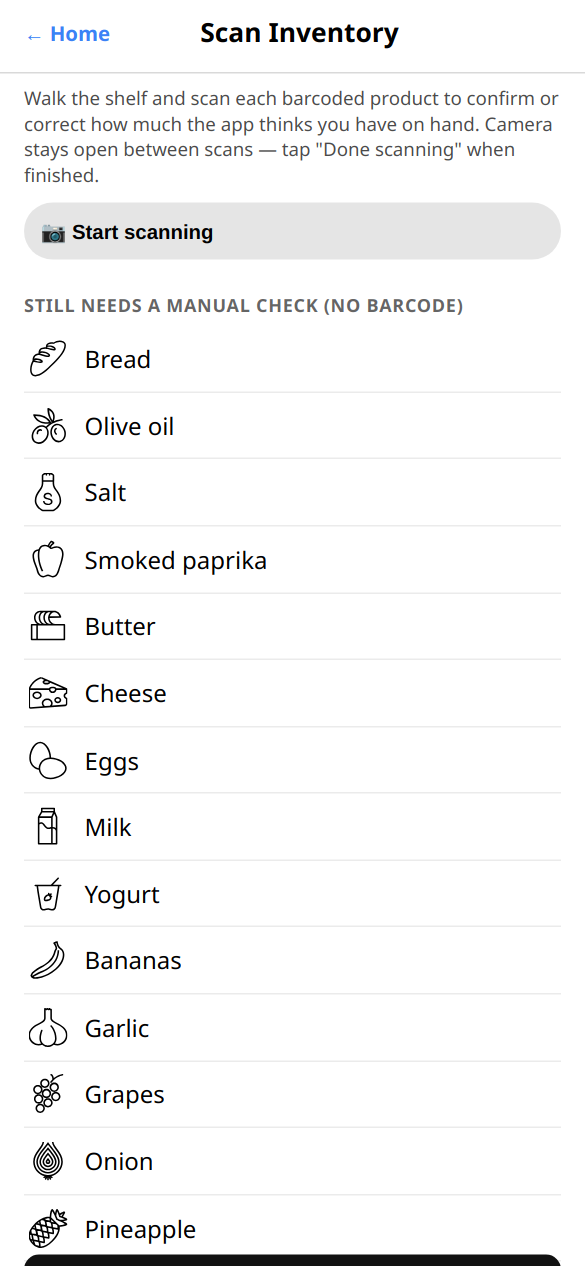
- Tap "📷 Start scanning" and scan one barcoded product after another — the camera stays open between scans, no need to tap Start again each time.
- Each scan shows what the app currently thinks you have — tap "✓ Matches" if it's right, or type the real count and tap "Save this count" if it's not.
- Anything without a barcode is listed separately at the bottom as a reminder to check it by hand — this tool only works with products already barcode-linked.